How to connect your TV with a soundbar and another input device (Blu-ray Disc™ player, CATV tuner, game console, etc.) not compatible with an eARC or ARC connection, using an optical digital audio cable and HDMI cables.
Notes:
- If your TV and soundbar have an HDMI terminal marked as eARC/ARC or ARC, we recommend connecting the TV to the other devices by using only an HDMI cable.
- The terminal locations will differ depending on your soundbar. Refer to the operating instructions for more information. Manuals, specifications, and warranty information for your Sony product are available online.
- Depending on the model, it may be necessary to switch the soundbar settings to TV after connecting. For details on how to operate your soundbar system, refer to its operating instructions.
- If the soundbar comes with a subwoofer, avoid leaving items on top of the subwoofer. Since the subwoofer produces vibrations, any items placed on top of it may fall off.
Sound Bar + TV + Another audio device
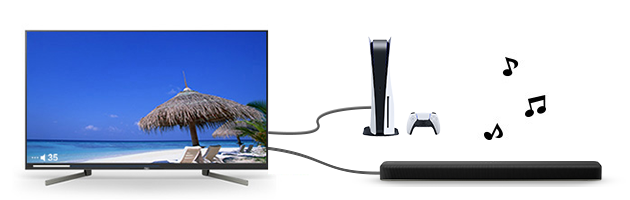
1. Connect the TV, soundbar, and external input device with optical digital audio and HDMI cables
Connect your TV to the soundbar with an optical digital audio cable. If you want to adjust the volume of the soundbar with the BRAVIA TV remote control, connect it with an HDMI cable as well.
- Use an optical digital audio cable to connect the Optical output terminal of the TV and Optical input terminal of the soundbar.
- Use an HDMI cable to connect the HDMI input terminals of the TV and HDMI output terminals of the external input device.
- If you want to adjust the volume of the soundbar with the BRAVIA TV remote control, use an HDMI cable to connect the HDMI input terminals of the TV and HDMI output terminals of the soundbar.
- A: Soundbar
- B: HDMI cable (included with the soundbar or optional)
- C: External input device (e.g. Blu-ray Disc™ player, CATV tuner, game console)
- D: HDMI cable (not supplied)
- E: Optical digital audio cable (not supplied)
2. Set the BRAVIA TV settings to output the sound from the soundbar
- Open the
Settings screen. How to access the Settings
- Select Display & Sound → Audio output → Speakers → Audio system.
- Select your favourite programme or external input with the TV remote control, and check if the sound is output from the soundbar.
Hints:
- When there is an audio delay: If the sound of the connected device (Blu-ray Disc™ player, gaming console, etc.) is delayed with the above connection, it may be improved by changing the TV settings. For details, refer to this article: When the soundbar is connected to the TV, the sound of other connected devices (Blu-ray Disc™ player, gaming console, etc.) is delayed. If the issue still persists after changing the settings, try the connection method below.
-
When no audio is output depending on the audio format / When there is an audio delay: If your soundbar has an HDMI input terminal, you can connect the external input device (Blu-ray Disc™ player, gaming console, etc.) directly to the soundbar instead of the TV.
- Use an optical digital audio cable to connect the Optical input terminal of the soundbar and Optical output terminal of the TV.
- Use an HDMI cable to connect the HDMI output terminal of the soundbar and HDMI input terminal of the TV.
- Use another HDMI cable to connect the HDMI input terminal of the soundbar and HDMI output terminal of the external input device.
- A: Soundbar
- B: Optical digital audio cable (not supplied)
- C: HDMI cable (included with the soundbar, or optional)
- D: External input device (e.g. Blu-ray Disc™ player, CATV tuner, game console)
- E: HDMI cable (not supplied)
What to expect with this connection:
- Even if the TV does not support eARC, you may be able to output a higher quality audio format (such as Dolby Atmos) played on an external device with the soundbar.
* The supported audio formats differ depending on the audio device. Please check the soundbar instruction manual or the manufacturer's specification page. - If you connect an external device and soundbar to your TV, and the soundbar sounds are delayed relative to the video, the symptom may improve.
Notes about this connection:
- Audio from system sounds and audio responses is not output.
- For TVs with a built-in MIC, the voice recognition performance of the MIC may be degraded.