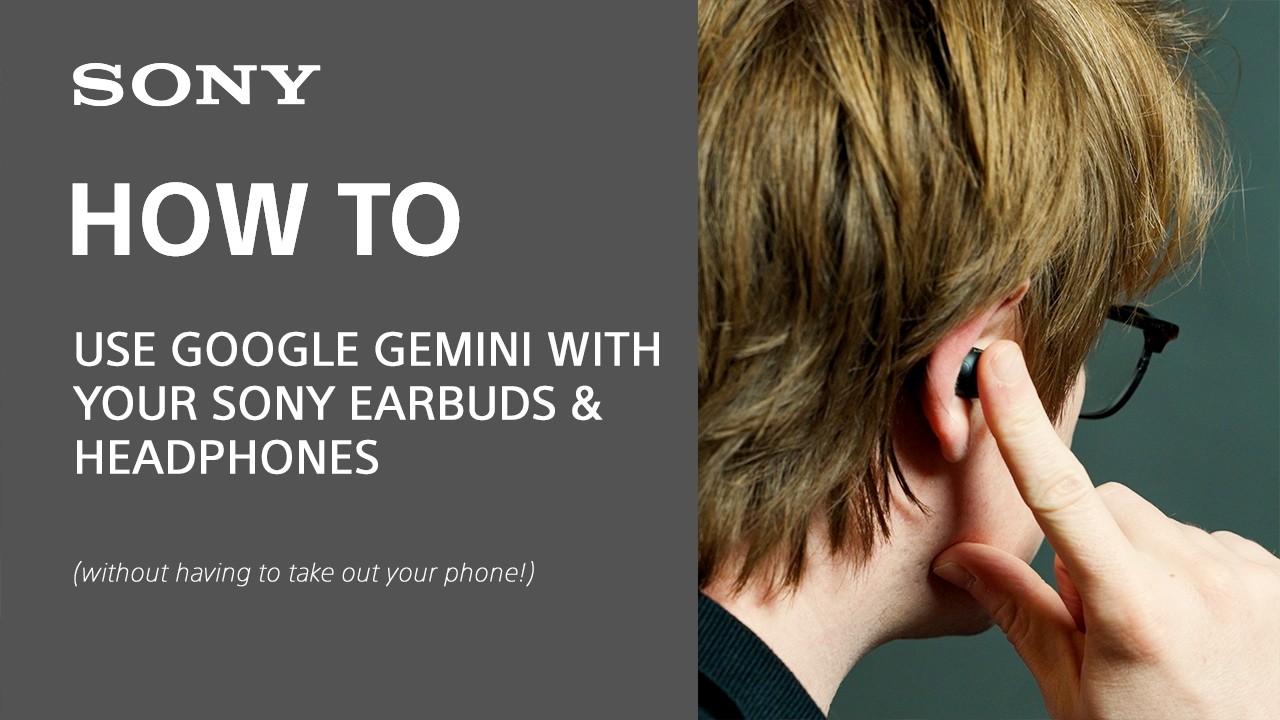
Set Up Google Gemini with Your Sony Headphones
If you skipped the digital assistant setup when you first connected your Sony headphones, follow these steps to set up Google Gemini and use it on the go without taking out your phone.
Before you begin
- Connect your headphones to your phone via Bluetooth. If you need help, see the related Bluetooth pairing video.
- Open the free Sony Sound Connect app. It should automatically detect your headphones.
- Make sure your phone and headphones are up to date. Check your phone in its system settings. To check your headphones, go to Device Settings → System → Update software in the Sound Connect app. If an update is available, the app will usually begin installing it automatically.
Set up Gemini
In the Sound Connect app, open the System tab and select Voice Assistant. Choose Digital assistant to open the Gemini setup screen. Follow the on-screen prompts, which may include signing in to your account and setting up voice recognition.
Use Gemini with your headphones
To talk to Gemini without taking out your phone, press and hold the right earcup while you speak. You’ll hear a sound indicating that Gemini is listening. Release the earcup when you’re ready for Gemini to respond. In the demonstration, Gemini responds: “Sony released the video game Astro Bot.”
If you’ve set up voice recognition, you can also say “Hey Google” to start a conversation without touching your headphones.
For more information about Sony headphones or using a digital assistant, visit the Sony Support website. Thanks for watching!