IMPORTANT: This article applies only to specific products and/or operating systems. Check Applicable Products and Categories for details.
The Text magnification function is useful for people who have difficulty reading small text on the TV screen.
Notes:
- Similar functions are also available in the Internet Browser.
- Zoom - Magnifies not only the text but all elements on the screen.
- Text Size - Select a text size of either Normal or Large.
- When the Text magnification function is turned ON, editing INPUT or Quick settings is not available.
- The Text magnification function is automatically added to the Quick Settings menu once enabled.
Enabling text magnification
- Press the Quick Settings (
 or
or  ) button on your TV remote control.
 - Press the Left arrow button to select
 Settings, then press the Enter button.
 - Press the Down arrow button to select System, then press the Enter button.
- Press the UP arrow or Down arrow button to select Accessibility, then press the Enter button.
- Press the UP arrow or Down arrow button to select Text magnification, then press the Enter button.
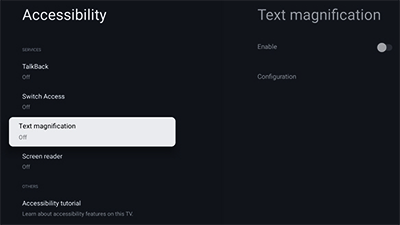
- Select Enable, then press the Enter button.
- Select OK, then press the Enter button.
- Press the Home button to exit.
Changing the colour of the text
- Press the Quick Settings ( or ) button on your TV remote control.
- Press the Left arrow button to select Settings, then press the Enter button.
- Press the Down arrow button to select System, then press the Enter button.
- Press the UP arrow or Down arrow button to select Accessibility, then press the Enter button.
- Press the UP arrow or Down arrow button to select Text magnification, then press the Enter button.
- Press the Down arrow button to select Configuration, then press the Enter button.
- Select Color, then press the Enter button.
- Press the Down arrow button to select your preferred combination of text and background colour from White on black, Black on white, and Yellow on black, then press the Enter button.
- Press the Home button to exit.
Changing the duration of the appearance of text
- Press the Quick Settings ( or ) button on your TV remote control.
- Press the Left arrow button to select Settings, then press the Enter button.
- Press the Down arrow button to select System, then press the Enter button.
- Press the UP arrow or Down arrow button to select Accessibility, then press the Enter button.
- Press the Down arrow button to select Text magnification, then press the Enter button.
- Press the Down arrow button to select Configuration, then press the Enter button.
- Select Duration, then press the Enter button.
- Press the Down arrow button to select your preferred duration from Very short to Very long, then press the Enter button.
- Press the Home button to exit.