This guide offers troubleshooting tips to download BRAVIA apps on your TV with ease, including how to install, uninstall, update, and force-stop an app. Following these steps can help resolve most app-related issues on your Android or Google TV.
Don't know your TV type? Refer to this article for details: How to check if your BRAVIA TV is a Google TV, Android TV™, or other TV.
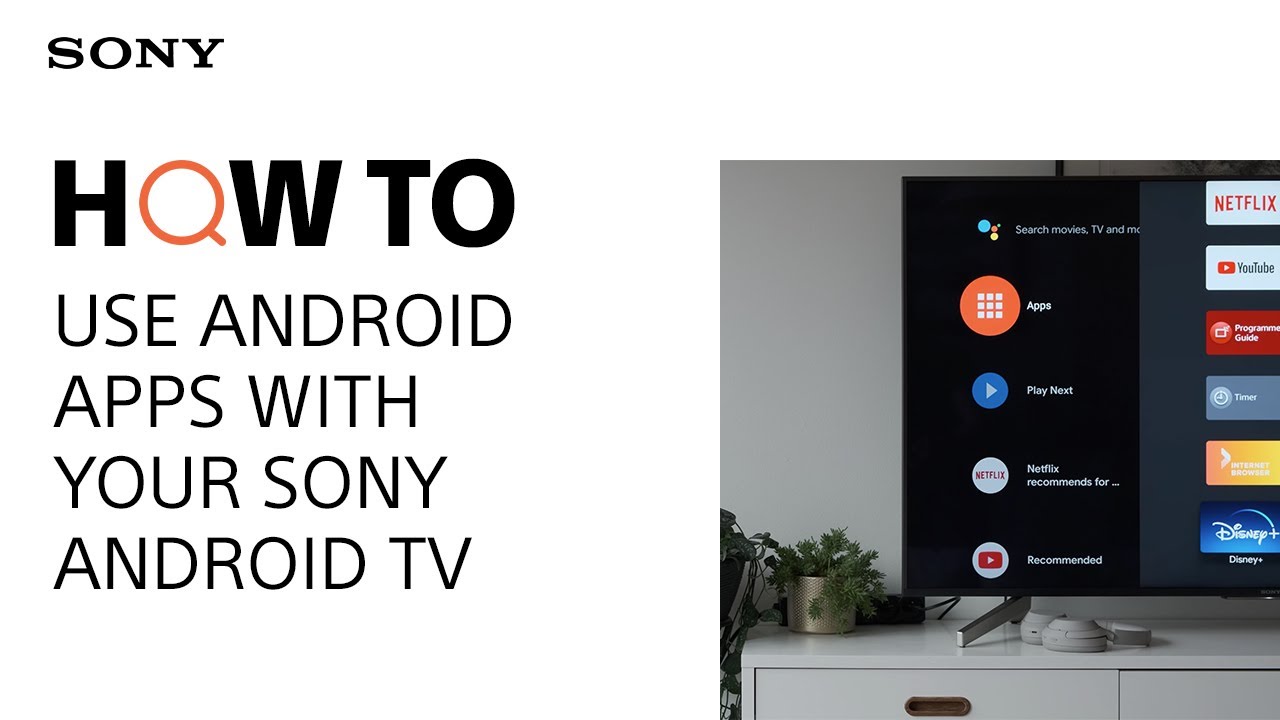
For more information about using Android apps, check out our video guide below:
Before you start
There are a few things to consider when downloading apps on your TV.
-
You need an Internet connection and Google Account to install apps from the Google Play Store. We recommend that you create your Google Account using a computer or mobile device.
-
Some apps may not be available for all TVs or countries/regions.
-
Third-party apps are updated at the developer’s discretion.
-
There are free apps and paid apps. To purchase a paid app, a prepaid Google Play gift card code or credit card information is required. You can purchase a Google Play gift card from various retailers.
Jump to a section
- How to access the Google Play Store
- How to install/uninstall TV apps (and free up storage)
- How to update your apps
- How to reorder your app list
- Accessing the app mini-menu
- Can't find or download certain apps?
- Troubleshooting TV app issues
How to access the Google Play Store
Getting to the Google Play Store from the Home screen is easy.
For Android TVs
- Use your remote control arrow keys to navigate to the Apps tab.
- When you navigate down in the Apps tab, you will have the option to open the Google Play Store before continuing down in the app tile list.
On your remote control, press OK to open the Google Play Store.
For remote controls with an Apps icon
For remote controls with an APPS button
For Google TVs
- Use your remote control arrow keys to navigate to the Apps tab.
The Apps tab screen displays your apps in a row. - Go to Google Play Store and press OK.
Notes:
- The Google Play Store features examples of popular apps, but you can also use the Search tab located at the top of the screen to find specific apps. Alternatively, you can use the voice search or on-screen keyboard to look for apps without using the Apps tab. If the app is available, you will get a Google Play Store search result, and you'll be able to download the app immediately.
- You can also quickly access the Google Play Store via the Input menu. Press the Input (
) button on your remote control to open the Input menu.
For more details, visit the Reorder your app list via the Input menu section of this article.
How to install/uninstall TV apps (and free up storage)
Getting rid of old or unused apps can help free up some much-needed space on your TV. This can also help if your memory is full but you want to download a new app. In this case, your TV will inform you about insufficient storage and ask you to delete apps or content that you no longer use.
There are different ways to install/uninstall an app on your TV. Click or tap a section below to get started.
Note: Not all TV menu options are shown below. For exact instructions, refer to your TV manual.
Via the APPS button (certain models)
How to check your unused apps and app storage
-
To see your unused apps
-
Go to Settings.
-
Select Apps.
-
Select Unused apps.
-
-
To see your app storage
-
On the Home screen, navigate to your profile icon on the far right.
-
Select Manage apps and games.
-
Select Free up storage.
-
Additional resources
How to update your apps
Your apps should run the latest version if your TV is connected to the Internet. However, keep in mind that Google updates apps in phases, so it's possible your TV hasn't received an app update yet, even though the latest version is available. In that case, you can manually check for updates via the Google Play Store.
-
How to manually check for updates
-
Open the Google Play Store.
-
Go to Manage apps and games, which is hidden under your Google Account icon in the top right corner.
-
Select Updates → Check for updates.Note: Go to Manage apps and games → Updates → Update all to update all your apps.
-
-
How to enable automatic updates
-
The steps will depend on your TV menu options:
-
Go to Settings → Apps → Manage updates → Auto-update apps → Select the sliding bar to turn this feature On.
-
Navigate to your profile icon → select Settings → Auto-update apps → Select Auto-update apps at any time.Note: Select Don’t auto-update apps to disable automatic updates.
-
-
How to reorder your app list
It's possible to customise the order of your apps for easier and quicker access. We'll show you how to do this using the quick selection bar, app mini-menu, and Input menu so you can keep your favourite apps within reach.
-
Android TV
- On your Home screen, you will see a Your apps banner featuring your favourite apps. This is your quick selection bar.
- Navigate to the right of the banner until you reach a + (plus sign).
- Press OK to add new apps to your quick selection bar.
-
Google TV
- On your Home screen, select the Apps tab.
- Scroll to the end of Your apps (quick selection bar) and select Reorder.
- Select the app you want to move, and choose your preferred position.
- Select Done when you've finished reordering the apps, or press the Back button.
How to bookmark an app to your favourites (via the app mini-menu)
This applies to both Google and Android TVs:
- Hover over the app (as if to open it), and on your remote control, long-press the OK button to open the app mini-menu.
- Select Move and drag the app tile to your preferred position.
Note: After selecting Move, unselect the app to remove it from the Input menu. - On your remote control, press Back to stop moving the app around.
Reorder your app list via the Input menu (Google TV)
You can reorder apps to show up first in the Input menu.
- Press the Input (
) button → Scroll to and select Edit → Select the desired app → Select Close.
Note: After selecting Edit, unselect the app to remove it from the Input menu.
Now when you press the Input button, your desired app will appear first in the Input menu.
Accessing the app mini-menu
Every app has a mini-menu that allows you to take several actions (e.g. Open, Move, View details). All you have to do is hover over the app (as if to open it), and on your remote control, long-press the OK button until a pop-up menu appears.
Note: The actions available in the mini-menu depend on your TV type.
-
Android TV mini-menu
- Open
- Move
- Add to favorites
- Info
- Uninstall
-
Google TV mini-menu
- Move
- Open
- View details
Can’t find or download certain apps?
There are three main reasons why you can't find or use an app:
- The app isn't available on your TV
- First, a service provider doesn't always have an app on the market. It's possible that your favourite smartphone app doesn't have an equivalent (yet) on Android or Google TV.
- Check out Google's list of available Android TV apps.
- First, a service provider doesn't always have an app on the market. It's possible that your favourite smartphone app doesn't have an equivalent (yet) on Android or Google TV.
- The app isn't supported in your country/region
- Secondly, your location (country/region, territory) also matters. Some apps are only available in a certain country/region. However, these apps might one day become available in more countries/regions if the app provider decides to expand their support. Yes, it's a complicated patchwork out there. When in doubt, it's always best to contact the service provider and check their website for supported countries/regions and information.
- Your TV only has pre-installed apps
- Some TVs only have pre-installed apps and do not allow you to install new ones.
- To see which apps your TV has, go to Manage apps and games → On this device → Browse your app list.
Workarounds for TVs that can't install new apps
-
Use a Chromecast or Fire TV stick: To cast content from your smartphone to your TV, plug these devices into your TV using an HDMI port, open the app on your smartphone, and play your content in the app.
- Connect a laptop with an HDMI cable: Use an HDMI cable to connect a laptop to the TV to enjoy your PC content on a larger screen.
- Use a PS4 or PS5: Gaming consoles also have access to popular streaming apps. If your PlayStation doesn't already display the app in the "All apps" section, please download it from the PlayStation store. The availability of the app will depend on your country/region.
Additional resources
Troubleshooting TV app issues
Are you experiencing app issues? Click or tap an option below for troubleshooting tips.
For Android/Google apps
Uninstall and reinstall the app
For non-Android/non-Google apps
Clear your browser cookies (certain models only)