IMPORTANT: This article applies only to specific products and/or operating systems. Check Applicable Products and Categories for details.
This article will discuss how you can connect a sound bar to a TV.
You can use the following:
- an HDMI cable via the HDMI port labelled ARC/eARC
- an Optical cable, in case your TV doesn't have HDMI
- an analogue audio cable if your TV has an analogue audio output
- Bluetooth if your TV has an A2DP profile.
After connecting, if the sound bar doesn't immediately play sound, check the audio settings of your TV and sound bar:
The steps below are an example of Sony's Android TV™ or Google TV™.
- Open the
 Settings screen. How to access Settings
- If the remote control has a
 Quick Settings button:
- On the remote control, press the (Quick Settings) button.
- Select Settings.
- If the remote control does not have a Quick Settings button:
- On the remote control, press the HOME button.
- Select Settings.
- The next steps will depend on your TV menu options:
- Select Display & Sound → Audio output → Speakers → Audio system.
- Select Sound → Speakers → Audio system
- Depending on your model, it may also be necessary to switch your Sound Bar settings to TV.
How to connect a sound bar directly to a TV
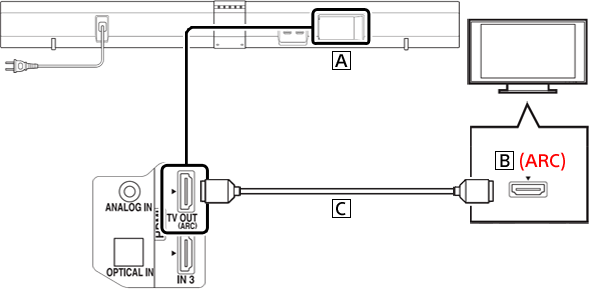
- On the back of your TV, look for the HDMI input slot labelled ARC (Audio Return Channel), or eARC (Enhanced Audio Return Channel).
- On the back of your sound bar, find the TV OUT (ARC) slot.
- Connect both slots with the HDMI cable.
If you're curious about ARC and eARC, you can read the explanation here.
What to do if my TV doesn't have an HDMI port labelled ARC?
You can use an Optical Audio cable or Aux cable to connect the sound bar to the television.
How to connect a sound bar with an Optical Audio cable
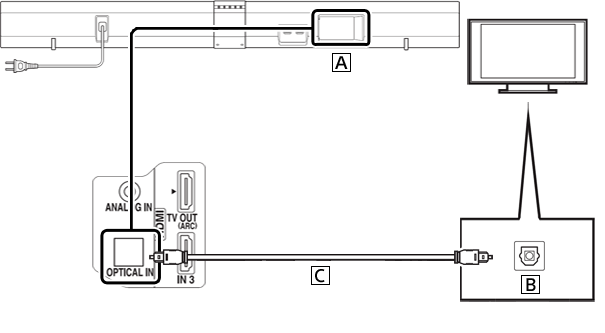
- On the back of the sound bar, look for the OPTICAL IN slot (A).
- On the back of the TV, look for the OPTICAL OUT slot (B).
- Connect both slots with an Optical Audio cable (C).
If you have an additional device connected to your TV, also connect the TV HDMI IN slot to the TV OUT (ARC) slot on the sound bar.
How to connect a sound bar with an analogue audio cable (AUX)
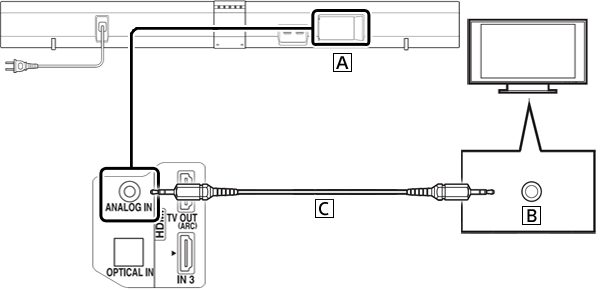
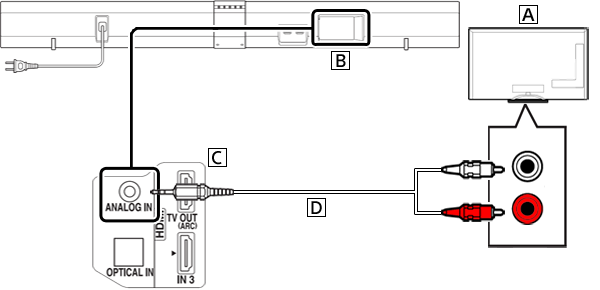
- On the back of the sound bar, find the ANALOG IN slot (A).
- On the back or side of the TV, find the TV's audio output slot (B)
- Use an Aux cable (C) to connect both slots. Alternatively, you can use a stereo mini jack (red and white audio out terminals)
Aux Cable
Stereo mini jack
How to connect a sound bar through Bluetooth
- To establish a Bluetooth connection with your TV, your TV needs to be checked for bluetooth compatibility.
- You'll need to activate sound bar Bluetooth pairing (it's not automatically detectable). The exact procedure is described in your sound bar manual. Here are two examples to show that Bluetooth pairing procedures can differ:
- HT-S40R / HT-G700 / HT-X8500 / HT-X9000F / HT-S200F:
![]()
- HT-A7000 / HT-A5000 / HT-S350 / HT-Z9F:
![]()
Things to remember when connecting via Bluetooth:
- If you connect the sound bar via BLUETOOTH, you can't display the sound bar operation screen (e.g. menu on the TV screen) or use different sound bar functions except listening to the TV sound.
- The optimal signal exchange between a TV and a sound bar remains an HDMI cable. Due to its wireless nature, Bluetooth is more prone to potential latency issues. A cable offers better signal stability.
Notes:
- The wired connection examples are illustrated using the HT-CT660. Depending on your system, terminal locations will differ. Refer to the operating instructions for details.
- If your Sound Bar comes with a Subwoofer, avoid leaving items on top of the Subwoofer. Because the Subwoofer produces vibrations, any items placed on top of it may fall.